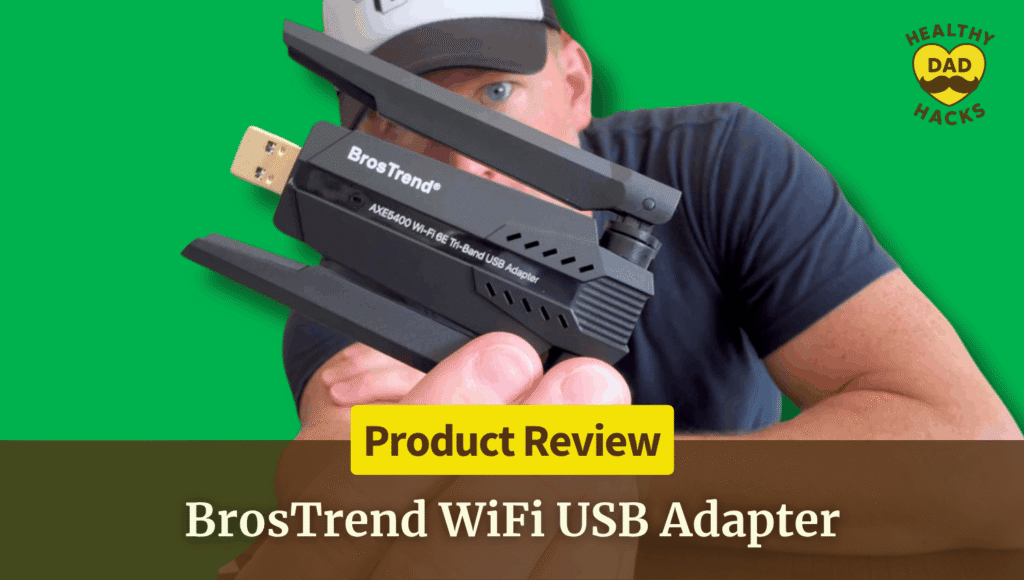
Need a USB WiFi Dongle for PC? My BrosTrend Setup, Install, and Speed Test
Desktop computer too far from your router? In my BrosTrend USB WiFi adapter review, I show how I got my Windows 10 PC online in minutes without running an Ethernet cable and how the BrosTrend boosted my average download speed by 39% compared with my old dongle.
Desktop computer too far from your router? In my BrosTrend USB WiFi adapter review, I show how I got my Windows 10 PC online in minutes without running an Ethernet cable and how the BrosTrend boosted my average download speed by 39% compared with my old dongle.
by
Eric Sharp

Modified last on
Nov 8, 2026
Topics
Amazon Affiliate Disclaimer
This content may contain affiliate links, which means that if you click on one of the product links, I may receive a small commission to help purchase more Dad-friendly products to do more helpful reviews! As an Amazon Associate I earn from qualifying purchases.
My desktop was too far from the router to run an Ethernet cable, and I had no plans to turn that into a weekend project.
I wanted a USB WiFi adapter for PC that I could plug in and get working without a bunch of setup. That’s where my BrosTrend AXE5400 WiFi 6E USB adapter review starts. On my Windows 10 desktop, I plugged it in, followed the built-in driver prompt, and was online in a few minutes.
I also ran before-and-after speed tests on my home fiber connection. With the BrosTrend, my download speeds averaged 39% higher than with my old USB WiFi dongle.


My Quick Video Review
Here’s a quick video review of the BrosTrend AXE5400 WiFi 6E USB adapter. I show where it plugs into my PC, explain the built-in driver setup, and put my before-and-after speed tests on screen.
Other Home Office Products
Here are a few other products you may be interested in, Dad.
- Give fiber a wired route. If you can run Ethernet to your PC, my TP-Link TX201 2.5 Gigabit network card review shows how I upgraded a wired connection.
- Run a cable along the trim. I show how I routed one through my home office in my Jadaol flat Cat 6 Ethernet cable review.
- Keep the desktop budget in check. If you’re setting up a home office PC from scratch, see what I got for my money in my refurbished Dell OptiPlex 7070 desktop PC review.


Pros and Cons
Here’s a quick breakdown of what Dad liked, and what can be improved about this USB WiFi adapter.
What I Liked
- Faster downloads in my tests. Both readings after the swap cleared 300 Mbps.
- Driver included on the adapter. I could install it without an internet connection or a CD drive.
- Quick Windows 10 setup. I followed the installer prompt and was connected in minutes.
- USB 3.0 connection. I could plug it into my PC from the outside and get back to my morning.
Dad’s Honest Callouts
- Windows 10 has a band limit. On this model it can use 2.4 GHz and 5 GHz. Using 6 GHz requires Windows 11 and a compatible router.
- Check the clearance around your port. The two external antennas make this a wider fit than a tiny USB dongle.
Quick Verdict
I’d recommend the BrosTrend AXE5400 if an older adapter is holding back your Windows PC. The built-in driver kept setup simple, and my download speed went from 185.93 to 344.52 Mbps in the two tests I ran five minutes apart. I’d run a few tests on your own setup to see what the swap does for you.
Top Amazon Reviews
Don’t just take my word for it — here’s what other Amazon buyers commonly mention about the BrosTrend AXE5400 WiFi 6E USB adapter.
- “A speed bump for an aging PC setup” – Some buyers saw better speeds after replacing an older or failing adapter.
- “Connection stability depends on the setup” – Some buyers describe a steady connection, while others report dropouts when switching networks.
- “Check how it holds up early” – Several buyers reported that their units stopped working within the first day.
Unboxing – What’s Inside?
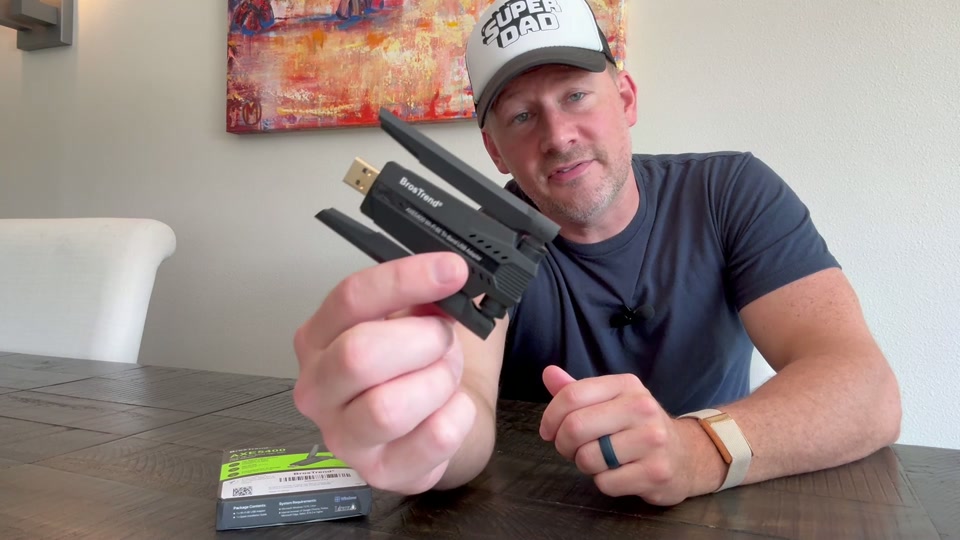
The box contains the BrosTrend AXE5400 USB adapter with two attached antennas and a quick installation guide.
Specifications
- Model: AX8 (AXE5400)
- Interface: USB 3.0
- Wireless bands: 2.4 GHz, 5 GHz, and 6 GHz
- Advertised link rates: Up to 574 Mbps at 2.4 GHz and up to 2,402 Mbps each at 5 GHz and 6 GHz
- Compatibility: Windows 10 and 11 desktops and laptops. The 6 GHz band requires Windows 11.
- Antennas: Two external high-gain antennas
Dad’s 5 Key Features
Here are the five things that stood out when I swapped adapters on my Windows 10 PC.
1. Faster downloads on my home fiber
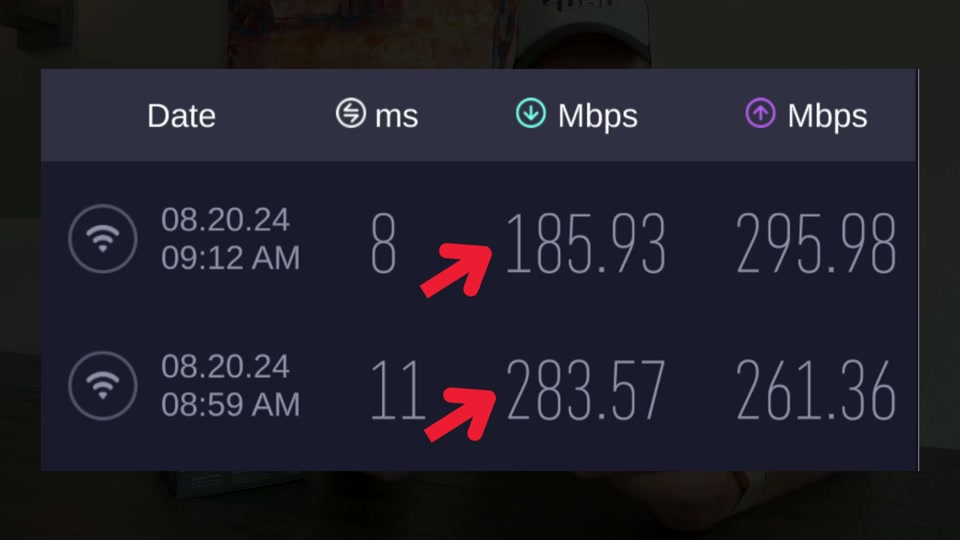
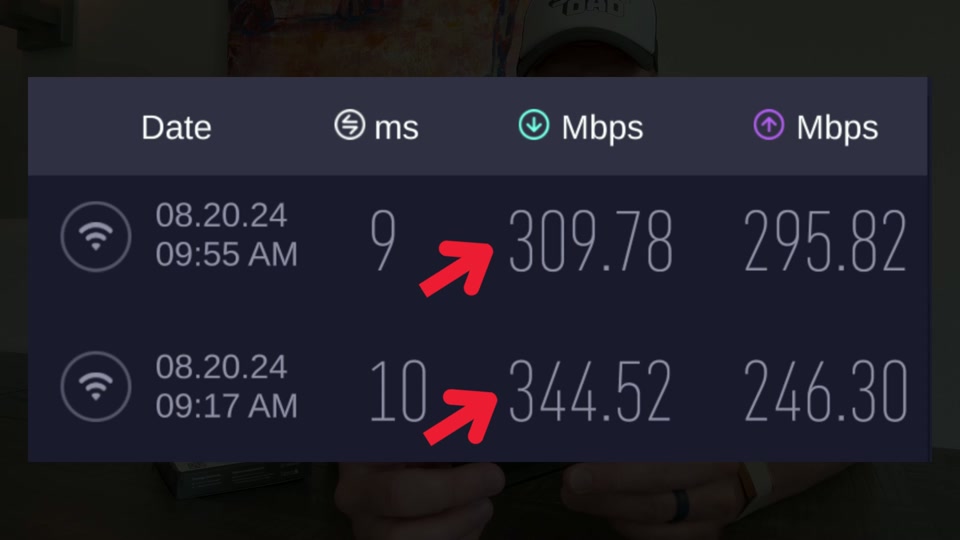
I ran two tests on my old adapter and got 283.57 and 185.93 Mbps down. At 9:17 a.m., five minutes after the last baseline run, the BrosTrend pulled 344.52 Mbps. A later run came in at 309.78 Mbps. Across two runs per adapter, my average download speed rose from 234.75 to 327.15 Mbps, a 39% boost on my setup.
2. A driver you can install offline
My favorite part of setup was that the adapter already had the driver on it. After I plugged it in, Windows prompted me to install it, and I was up and running in a few minutes. That’s especially handy if your old adapter has quit and your PC can’t get online to download a replacement driver.
Dad Tip: When Windows prompts you after plugging it in, run the included installer before trying to join your WiFi network.
3. USB 3.0 makes for an easy swap
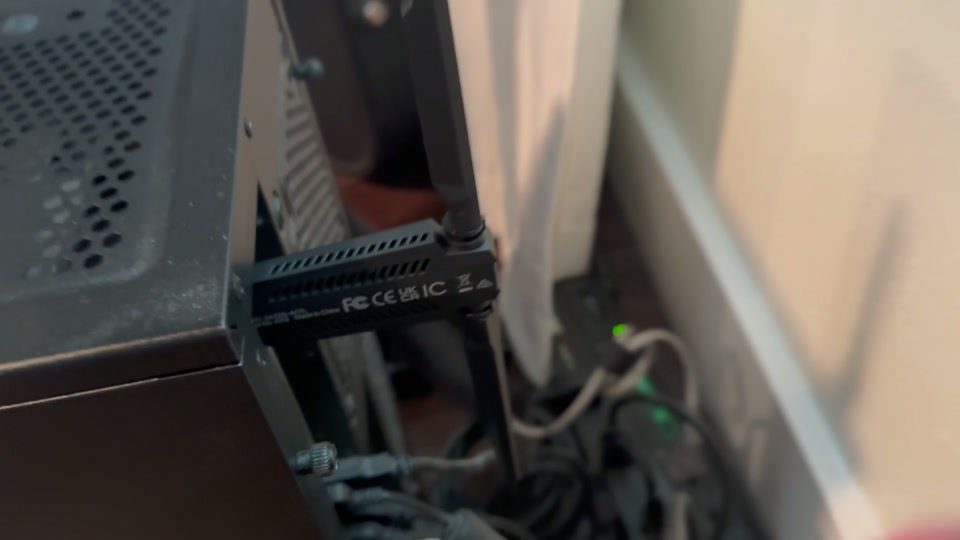
I plugged this USB 3.0 WiFi adapter into the back of my PC. That was the whole hardware install. If your desktop sits close to a wall or you’ve got cables packed into neighboring ports, take a look behind the case first. You’ll want room to plug the adapter in and position the two antennas.
4. A WiFi upgrade for Windows 10
I ran my tests on Windows 10, which can use the adapter’s 2.4 GHz and 5 GHz bands. The extra 6 GHz band requires Windows 11 and a router that supports 6 GHz WiFi. If you’re on Windows 10 like I was, the speeds I show in the video are a more relevant example than the number on the box.
Dad Tip: Run a speed test before pulling your old adapter, then repeat it after the swap. Compare the timestamps and download readings so you can see what changed.
5. Two antennas you can position
Both antennas are attached and can be angled once the adapter is plugged in. That matters at a crowded desktop because you can see where they’ll sit and adjust them around nearby cables. My video shows how the adapter fits at the back of the PC. The speed tests compare the two adapters as I used them, so I can’t isolate what the antenna position contributed.
Dad’s Final Thoughts
Fun Fact: The FCC opened 1,200 MHz of spectrum in the 6 GHz band for unlicensed use in 2020. Think of it as adding lanes to the wireless highway. Read the FCC announcement.
As a Dad, I like a fix I can knock out between other chores. A few minutes at the PC beats spending the morning wondering why the video keeps pausing.
Get Dad Content Monthly!
The best things I find every month — products, nostalgic discoveries, Dad hacks, and ideas.
One email. Once a month.
First email sent on the 1st of the month
You got this, Dad.
Save time and money, avoid trial-and-error
Every day of Dadhood matters. Don't waste hours researching products or making expensive mistakes. Buy smarter, rediscover nostalgic fun, and create more family memories.


About this Dad
Eric Sharp is the founder of Healthy Dad Hacks. He's married to the love of his life (Sarah) and proud Dad of a blended family (Hazel, Roman, & Dean). When not thinking about Dadhood, he enjoys; CrossFit, entrepreneurship, eating steak, growing his Michael Jordan card collection, 90s music, and fancy sneakers.
Don't leave yet, there's more!